

Could a better IPTV box fix your buffering, or would you just be connecting a faster device to the same problem? Before buying an IPTV box in Canada, check whether your connection, app and subscription work together at your own address.
A box can make navigation easier and support the player you prefer. It can't repair an overloaded internet connection, resolve an incompatible login or establish that a provider has permission to distribute its channels. The safest purchase starts with a practical test, not a hardware specification sheet.
Table of Contents
- What an IPTV Box Actually Does
- Bandwidth for HD and 4K Streams
- Test Your Connection and Data Limits Before Buying
- Which Apps and Devices Work Together
- Checking Subscription Fit and Provider Legitimacy
- Confirm Your Setup and Decide
What an IPTV Box Actually Does
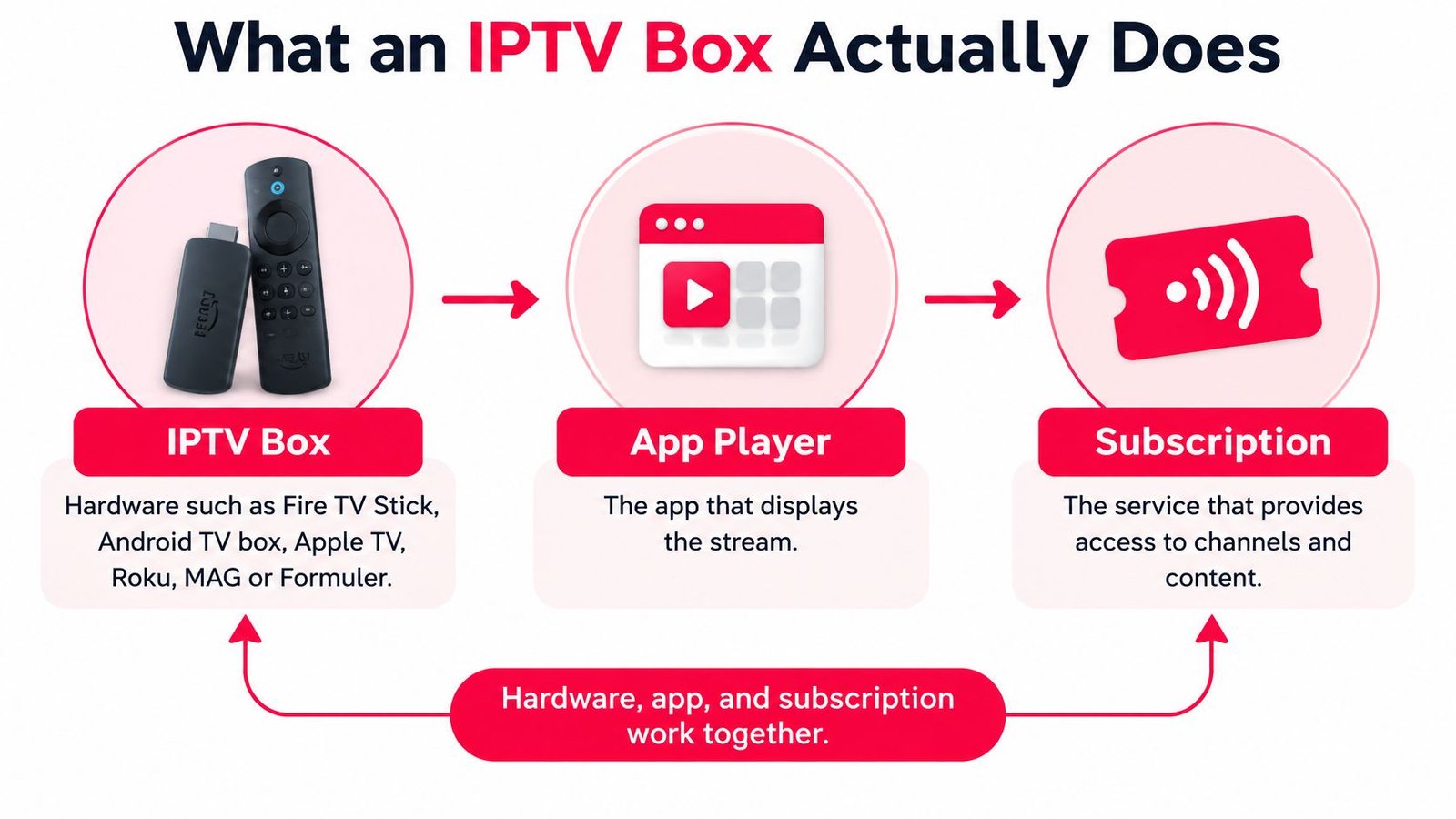
An IPTV setup has distinct parts that sellers sometimes bundle together:
- The box is the hardware. Fire TV Stick, Android TV boxes, Apple TV, Roku, MAG and Formuler are examples, although they don't all support the same apps.
- The app is the player. It displays the stream, organises channels and may show programme listings.
- The subscription supplies access. The service provides the channels, content and login details that a compatible player uses.
Think of the box as the engine, the app as the steering wheel and the subscription as the fuel. They need to work together, and your internet connection is the road underneath them. A powerful engine won't help much if that road is blocked.
The diagram separates the parts you're choosing.
Understand what the seller means by IPTV
The CRTC's broadcasting report reports that IPTV reached 35% of Canadian households in 2023, up from 20% in 2019, using a category that includes network-delivered services such as Bell Fibe and TELUS Optik TV but excludes standalone streaming services such as Netflix, Crave and Club illico.
That distinction matters because an online seller may use IPTV much more broadly. A device described as an IPTV box doesn't automatically include a subscription or have the same service arrangement as a telecom television package.
Our explanation of how IPTV works provides more background on the delivery process. For a buying decision, keep these questions separate: Will my connection carry my viewing mix? Will the device run my chosen app? Will my subscription work with both?
Bandwidth for HD and 4K Streams
Bandwidth needed by viewing case
The sustained requirements below use the per-stream guidance described in the CRTC's technical discussion of video connectivity: 3–5 Mbps for standard definition, 5–8 Mbps for HD and 25 Mbps for 4K UHD. Combined rows are arithmetic totals, and the recommended targets are planning allowances calculated at roughly double those needs, not guaranteed service requirements.
| Viewing case | Sustained need | Recommended target | Typical setup |
|---|---|---|---|
| Standard definition, one stream | 3–5 Mbps | 6–10 Mbps | Older TVs and secondary rooms |
| HD, one stream | 5–8 Mbps | 10–16 Mbps | Most living rooms and sports in HD |
| 4K UHD, one stream | 25 Mbps | 50 Mbps | 4K TVs and premium sports |
| One HD plus one 4K | 30–33 Mbps | 60–66 Mbps | Mixed household viewing |
| Two concurrent 4K streams | About 50 Mbps | About 100 Mbps | Two 4K screens in one household |
Read the sustained column as the capacity reserved for video, not the ideal internet plan for the whole home. The target column leaves breathing room for other activity and for the difference between a plan's advertised speed and what reaches the television.
Headroom is a planning choice, not a promise. It helps accommodate Wi-Fi contention, protocol overhead, video calls, cloud backups and other users. Upload activity matters too, because a connection can become unresponsive even when its download capacity looks sufficient.
Build a household viewing mix
Say someone watches HD television in the kitchen while another person watches a film in 4K in the living room. Use the mixed-household row rather than buying for the living-room screen alone.
If someone also uses a gaming console, check what they're doing. Playing online, downloading a game and uploading a recorded clip create different demands. Don't assign the console a fixed streaming allowance and assume the calculation is finished.
A plan that barely covers the sustained requirement might work when the home is quiet. It gives you less protection when someone starts a download or the neighbourhood connection becomes busy.
Practical rule: Buy for the viewing combinations your household actually uses, not the highest resolution printed on the box.
Sustained throughput matters more than a brief peak. A connection that produces an impressive speed-test result can still reduce picture quality or buffer when congestion and packet loss interrupt delivery.
Write down your usual viewing combinations, including secondary rooms. Match each combination to the table, then test whether that capacity consistently reaches the place where you'll install the box.
Test Your Connection and Data Limits Before Buying
Test the connection the box will use. A speed reading beside the router won't tell you whether the television cabinet has weak Wi-Fi reception or whether an evening upload disrupts live viewing.
Use a speed-test tool that reports download speed, upload speed and loaded latency. If it also reports packet loss, save that result with the others.
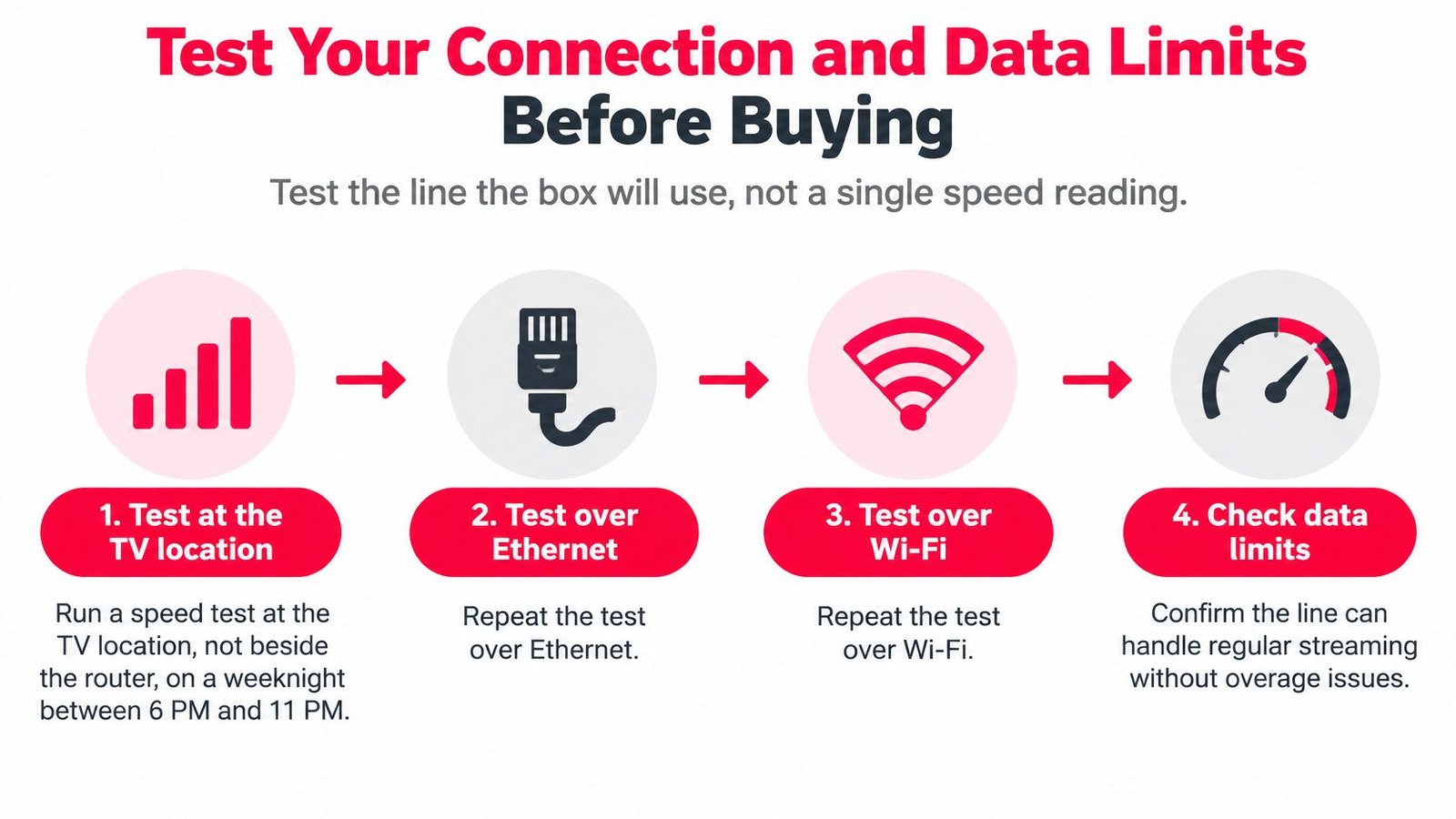
This visual summarises the location, connection and data-limit checks.
Run a repeatable evening test
Start at the television. Use a laptop or another suitable device where the box will sit, during your normal evening viewing period. Record the room, connection type and household activity alongside the result.
Compare Ethernet with Wi-Fi. Repeat the test using a cable connected to the router, then return to Wi-Fi. A large improvement over Ethernet suggests you should address the local wireless connection before replacing the streaming hardware.
Test while uploading. Start a cloud backup or large upload and watch how responsiveness changes. In CRTC fixed-wireless testing, peak-hour idle latency averaged 39 ms, while latency during an upstream load test reached 415 ms; the same report identifies 50 ms latency and 0.25% packet loss as thresholds associated with high-quality fixed broadband for real-time applications. These are reference points, not a guarantee that every IPTV stream will behave identically.
Record more than download speed. Save idle and loaded latency, packet loss where available, and any stalls during playback. Bufferbloat occurs when queued traffic sharply increases delay, so a healthy-looking download result can hide an upload-related problem.
Adjust the home network. Prefer Ethernet where practical. Otherwise, try strong 5 GHz Wi-Fi, move the router out of enclosed furniture and enable smart queue management if your router supports it. Quality-of-service controls may help prioritise traffic, but they can't create missing access capacity.
Repeat on separate evenings. Keep the test conditions comparable and include a busy household session. Don't commit to a long subscription because an otherwise empty home passed a daytime test.
Check the address and monthly allowance
In July 2025, Innovation, Science and Economic Development Canada reported that 95.8% of Canadian households had access to high-speed internet, leaving approximately 4.2% without access to that standard. Availability doesn't establish how an individual connection performs under load.
For rural, northern, fixed-wireless and satellite households, record the access technology as well as the plan name. Check your provider's usage meter before and after a representative viewing session, then estimate monthly use from your normal viewing hours. Include other household downloads and uploads before deciding whether the data allowance is comfortable.
Our IPTV Vancouver guide offers a local starting point, but a city-wide recommendation can't replace testing your building and room.
Buffering only on Wi-Fi points towards the local signal. Buffering over Ethernet during busy periods warrants checking the access connection and stream provider before buying another box.
Which Apps and Devices Work Together
Device and app fit checklist
| Device | Typical app route | Check first | Known limit |
|---|---|---|---|
| Amazon Fire TV or Fire Stick | Player from the app store or sideloaded | Available RAM and installation permissions | Older sticks can struggle with demanding playback |
| Android TV box | Store player or APK installation | Android version and RAM | Older low-RAM boxes may stall |
| Apple TV | Player listed in the App Store | Regional app availability | Installation is restricted to supported distribution routes |
| Roku | Channel store | Whether a compatible player is currently available | Third-party player options may be limited |
| MAG or Formuler | Portal or middleware, depending on model | Firmware and provider configuration | Dedicated setup requirements differ by model |
| Smart TV | App supported by the television platform | Model year and operating system | Older models may lack current app support |
| Chromecast | Casting from a phone, tablet or laptop on cast-only models | Exact model and casting route | Cast-only playback requires a compatible source device |
The exact model matters more than the family name. Chromecast with Google TV isn't the same as a cast-only Chromecast, and a generic Android box isn't necessarily equivalent to a television-focused Android TV device.
Match the installation route to the hardware
Fire TV buyers should confirm that the intended player is available before assuming sideloading will solve compatibility. Install only from a trustworthy developer or supported store route.
Android TV box buyers should check operating-system support and whether the player works properly with a remote. An app designed for a touchscreen can be awkward on a television.
Apple TV buyers need to find the actual player in their regional App Store. An Android installation file won't work on Apple TV.
Roku buyers should be especially cautious about generic compatibility promises. Confirm the current channel or player rather than relying on an old tutorial.
MAG and Formuler owners should identify the model's intended portal or application workflow. Firmware, server details and account provisioning need to match that route.
Smart TV owners should search the television's own app store. A player available on one operating system may not exist on another.
Chromecast users should establish whether they're casting or installing an app on a Google TV model. That determines which device handles the player and login.
You may encounter IPTV Smarters Pro, TiviMate and GSE Player in reviews. Features, installation routes and subscription options can change, so confirm current limits on the app's own listing.
Before buying, write down the exact device model, player name and accepted login format. A statement that a service supports Android or Smart TVs isn't specific enough.
Checking Subscription Fit and Provider Legitimacy
A large channel catalogue isn't proof of a good subscription. If a seller can't explain its content rights, business identity or support arrangements, extra channels don't resolve those concerns.
Inspect the service's terms as carefully as its channel list.
Separate access from permission
The box is generally a streaming device. The service supplying the programmes needs the relevant rights, and installing a player doesn't establish those rights.
Canadian Heritage's departmental results report describes the continuing implementation of the Online Streaming Act. That policy framework isn't a certification of an individual seller's catalogue. Our guide to whether IPTV is legal in Canada explains why the delivery technology and the authorisation to distribute content are separate questions.
Before paying, confirm the login format, permitted simultaneous connections and whether the electronic programme guide, or EPG, loads in your chosen player. Test catch-up and on-demand playback separately, since a working live channel doesn't establish that every feature works.
Our Canada-based support team assists with device setup, channel access, subscription options and common troubleshooting concerns. Keep the exact device and player details ready so the answer addresses your setup rather than a broad compatibility category.
Use the video as supporting context while you complete your own checks.
Put the important questions in writing
- Content rights. Who owns or licenses the channels, and what authorises their distribution to Canadian subscribers?
- Seller identity. What business is taking payment, and is it identifiable in Canada?
- Full cost. Is the amount in Canadian dollars, and are applicable taxes disclosed?
- Exit terms. Where are the written cancellation, renewal and refund conditions?
- Trial payment. Does a trial require payment details, and can it trigger a charge?
- Privacy. What information is collected, why is it needed and how is it handled?
A Canadian support location or polished checkout doesn't substitute for clear answers about distribution rights. Don't treat a successful test stream as proof of authorisation either.
Adapt this message for a provider:
Please confirm the rights covering your Canadian channel distribution, your business identity, the full Canadian-dollar cost, cancellation and refund terms, trial payment requirements and privacy policy. Please also confirm that my device and player support your login format and the features I intend to use.
Confirm Your Setup and Decide
Make the purchase only when you can explain why the whole setup will work. A discount, fast activation or familiar device name shouldn't override an unresolved connection or compatibility problem.
Use a go or no-go decision rather than trying to balance every concern into a vague overall impression. A missing essential answer means pause, not necessarily reject forever.
Clear the practical checks
Confirm the hardware route. Find the intended player on the exact device you'll use. Check remote navigation, installation access and whether the television can display the picture format you want.
Accept the connection only after evening testing. Compare your recorded results with your household viewing mix. If playback fails under normal household activity, investigate the cause before spending money on a replacement device.
Verify the account inside the player. A username and password, an M3U playlist link and portal server details aren't interchangeable. Confirm the supplied format belongs in the app's supported login route, and keep credentials private.
Keep the provider's answers. Save the written explanation of licensing, seller identity, total cost, cancellation and refund terms, trial conditions and privacy practices. Don't let a sales conversation replace terms you can review later.
Choose a testable commitment. Prefer the shortest available term that lets you evaluate normal peak-hour viewing. Read the conditions before checkout, and distinguish a subscription charge from any separate player-app purchase.
Decide what would actually improve the setup
If your existing device runs the intended app comfortably and passes a representative playback test, you may not need a new box. Replacing working hardware adds cost without necessarily improving the picture.
If the player won't install, navigation is sluggish or the device no longer receives suitable software support, a replacement may be justified. Choose it for the specific limitation you need to remove, not because the packaging says IPTV or 4K.
Buying decision: Proceed when the hardware, home connection, player and subscription each pass their own checks. Don't use strength in one area to excuse a failure in another.
Apply the same standard to Watching IPTV Canada as to any other provider. Our support team is based in Canada, and we provide instant activation after checkout, but you should still settle setup and subscription questions before paying.
Price and support convenience belong at the end of the comparison. First establish that the service is suitable, the required access is authorised and your own connection can deliver the viewing experience you expect.
Watching IPTV Canada offers subscriptions starting at $4.99 per month in Canadian dollars, with applicable taxes included, alongside Canada-based support for setup questions. Visit Watching IPTV Canada with your device model, chosen player and evening test results ready, and confirm the fit before selecting a subscription.
No Responses