

The game's about to start, your IPTV app wants a password, and the welcome email has disappeared into your inbox. Before trying another guess, check whether the screen needs an account password, a playlist link, or a device activation code, because each has a different recovery route.
Table of Contents
- Where to Find Your IPTV Login Details
- How to Reset a Forgotten IPTV Password
- Entering Your Password Safely on Each Device
- Fixing a Password That Suddenly Stops Working
- Support Requests and Your Next Step
Where to Find Your IPTV Login Details
Your password for IPTV usually comes from the subscription provider, not the television or the player app. Many apps save the login without offering a way to reveal it, so the quickest starting points are your activation email, spam folder, purchase receipt and account portal.
IPTV credential types and where to find them
| Credential | Where it usually appears | If you cannot find it |
|---|---|---|
| Username and password | Activation email or account portal | Request a reissue through the provider's official support channel |
| Server address with username and password | Welcome email, often titled with the plan name | Ask for a reset; don't send the old password in a message |
| M3U playlist URL | Setup email or downloads page | Treat the link as a password and ask for a new one if it may have been shared |
| Device activation code | On-screen code in the app or TV interface | Generate a new code, since activation codes expire |
| Account portal email and password | Sign-up confirmation email | Use the provider's official reset page, not a link from a message |
Match the details to the login screen
An app requesting a server address, username and password uses an Xtream-style login. Enter each item in its own field, keeping the server address exactly as issued, including any supplied protocol or port.
A screen asking for a playlist URL needs the complete M3U link. Don't split it into separate username and password fields or remove the text after a question mark. That text may contain the access credentials.
If the TV displays an activation code, leave that screen open and follow the provider's device-authorisation instructions on your phone or computer. You're linking the television to an account, rather than creating a password for the TV.
Treat an M3U link like a password. Anyone who receives the complete link may be able to use the access it contains.
Keep the account portal separate
Your billing-portal login and your streaming-app login aren't necessarily interchangeable. Being able to view a receipt doesn't prove that you've found the credential the player needs.
Search your email for the provider's name, the plan name, and terms such as activation or installation. Compare the messages before copying anything, since an older setup email may contain replaced credentials.
There's no universal IPTV password, and a working login doesn't establish that the programming is licensed. A BCE submission to Canada's copyright consultation describes the Federal Court's 2019 GoldTV blocking order, illustrating why access credentials and content authorisation are separate questions.
How to Reset a Forgotten IPTV Password
A reset is generally safer than searching through old chats for a forgotten password. It replaces the credential, but don't assume it also signs out every device. Session handling depends on the provider, so check for a separate device-management or sign-out option.
Use this sequence to recover access without changing unrelated settings.
Find the latest account message. Check the welcome email, spam folder and purchase receipt before requesting changes. An updated activation message may have replaced the details you're trying.
Open the official account portal. Go to the website you purchased from using a saved bookmark or your own browser history. Don't use an unexpected message's reset link, even if its branding looks familiar.
Request the correct reset. Use the portal's recovery option and complete any email verification yourself, or contact the support channel listed on the official site. Specify whether you've forgotten the portal password or the streaming-app credential, because resetting the wrong one won't restore viewing.
Create a unique passphrase. Generate random words with a reputable password manager rather than adapting your email, ISP or another streaming password. The Canadian Centre for Cyber Security's password guidance recommends passphrases of at least four words and 15 characters, or passwords of at least 12 characters.
Test on a trusted device. Confirm that the provider accepts the full passphrase, including its characters and length, without truncating it. Then check the login on a device you control before installing it throughout the household.
Update the remaining devices. Replace saved credentials on the TVs and apps you still use, and delete old profiles from retired apps. Review active sessions separately and revoke any that should no longer have access.
The visual checklist below summarises the recovery process.
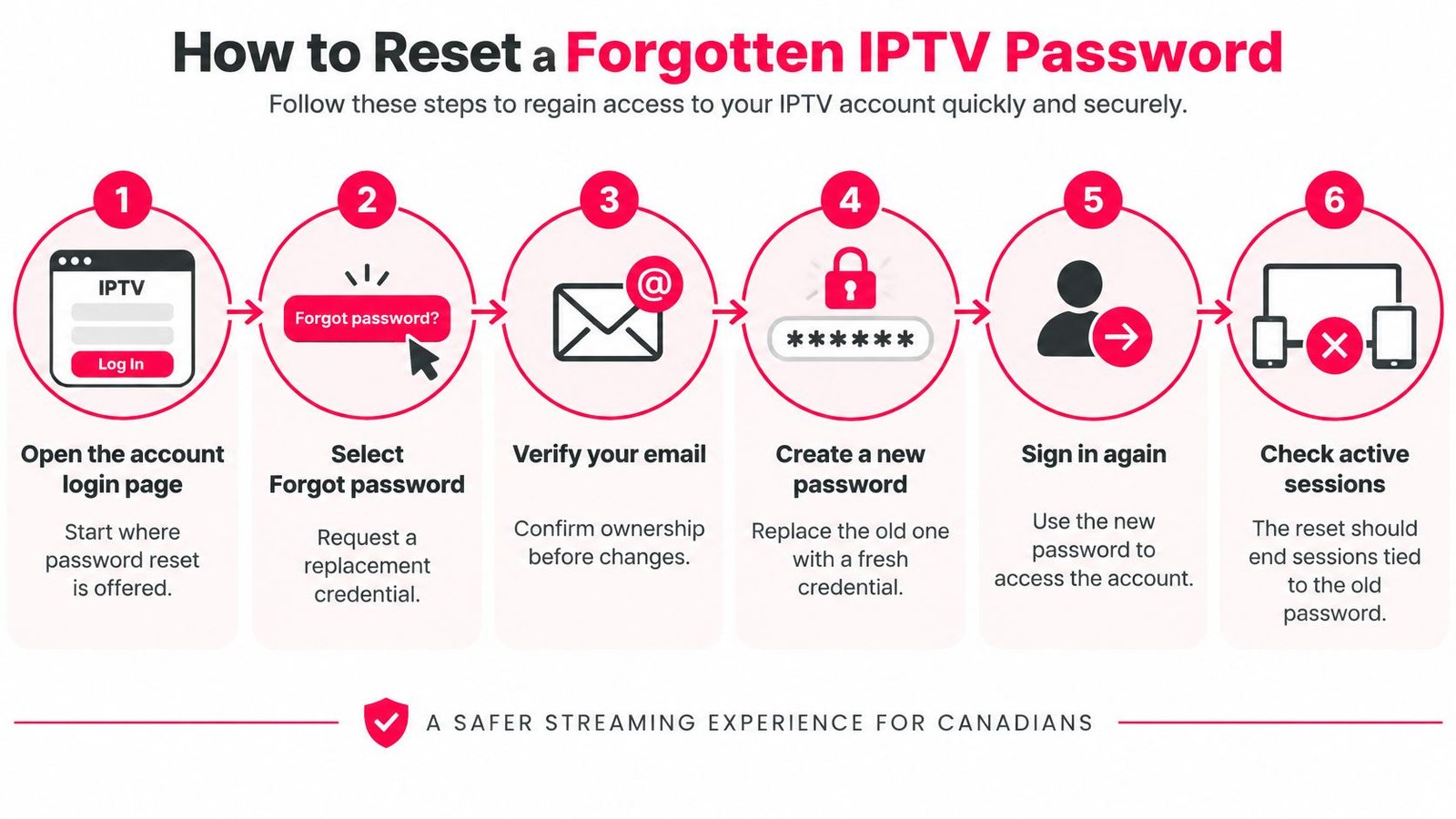
Confirm the reset actually worked
A successful test means the app accepts the new credential and loads the channel list and EPG, the electronic programme guide. If authentication succeeds but the guide stays empty, report that as a content-loading problem rather than repeatedly resetting the password.
Store the replacement in your password manager, not in an unprotected note beside the television. If it appears in a breach notification or gets sent through an insecure chat, replace it immediately.
Entering Your Password Safely on Each Device
The practical risk isn't just which device you own. It's where you enter the credential, who can see the screen, and whether the device keeps access after you've finished using it.
Remote-control entry makes small mistakes easy to miss, so check the field before submitting.
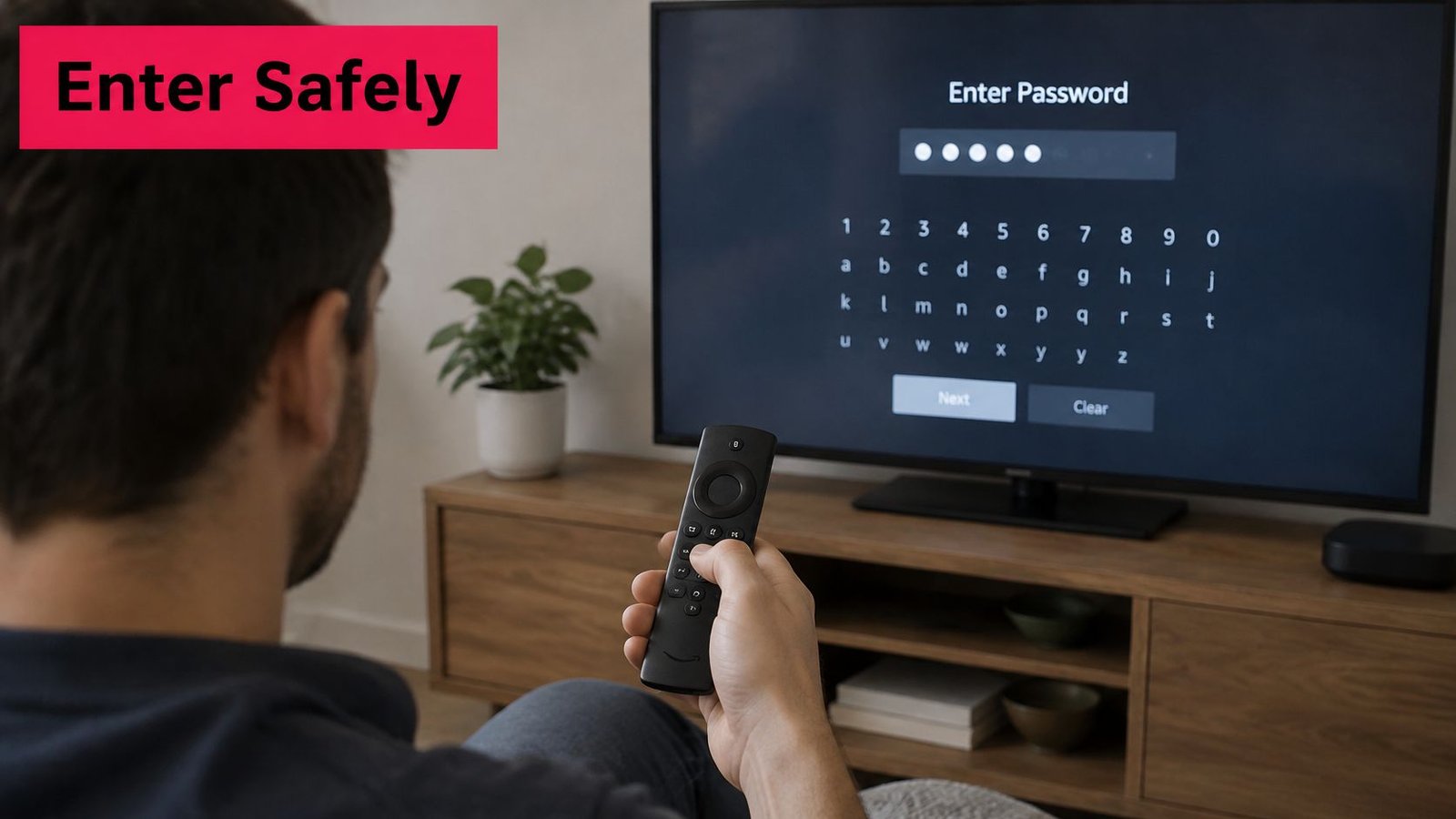
Fire Stick and Fire TV. Move slowly through the on-screen keyboard and watch for accidental capitalisation. Use the reveal-password button briefly if available, with nobody else viewing the screen, and don't photograph the completed form.
Android TV boxes. Enter details through the intended player's login form, not a browser pop-up promising to activate channels. Check the server field for leading spaces, missing letters and unwanted text inserted by autocomplete.
Samsung and LG smart TVs. Choose device activation when the service offers it. Keep the television's code private, and enter it only on the verified activation page you intended to open.
Phone or laptop. Use the official app or account page on a device you control. On a borrowed computer, decline browser password saving and sign out when you're finished.
Avoid confusing the player with the subscription
An app may ask you to name a profile before entering the subscription details. That profile label can be something recognisable, such as Living Room, but it doesn't replace the issued username.
Our IPTV Smarters setup guide helps you match the supplied details to the appropriate fields. Don't create a new subscription merely because the player opens an Add User screen.
For a visual walkthrough, keep your own account details out of any screen recording while following along.
Disable password remembering on guest-used TVs where practical. Prefer your home connection or a trusted mobile connection over public Wi-Fi for account changes, and never paste credentials into a free-playlist website or an unknown browser extension.
Use a separate login per person where the service supports it, and keep a private list of authorised household devices so you can identify which access to remove.
Fixing a Password That Suddenly Stops Working
The stream drops at kickoff, and the app rejects a password that worked last week. That doesn't automatically mean the account has been stolen or cancelled, so sort the symptom before changing everything.
Login symptoms, likely causes and first fixes
| Symptom | Likely cause | First fix |
|---|---|---|
| Login fails with details you know are correct | Stray space, wrong capitalisation or a mistyped server address | Retype carefully, check for spaces and confirm the server address |
| Worked last week, fails today | Provider-side change or revoked session | Request a reset through the official support channel |
| Password you did not change suddenly fails | Possible credential theft or reuse elsewhere | Run the incident sequence below, including a password change |
| Works on one device but not another | Device or connection limit on the plan reached | Sign out unused devices, then try again |
| Fails only during a live event | Possible connection congestion rather than the password | Test the connection and check service status before retrying |
The table gives starting points, not diagnoses. For example, a generic authentication error during a busy event can still involve the provider's login server rather than your home connection.
Check the subscription status in the account portal too. An expired subscription needs an account-status fix, while an accepted login followed by buffering needs playback troubleshooting.
Use the security sequence when there are warning signs
An unfamiliar device, an unrequested account change or a genuine password-change notification deserves more attention than a remote-control typo. Total Defense's streaming-account security guidance describes credential theft risks and the value of changing compromised credentials, reviewing access and checking devices.
For suspected takeover:
- Stop repeated attempts. Further retries may trigger an account lock without telling you anything useful.
- Open the official app or website. Avoid recovery pages sent by an unknown contact.
- Change the password from a trusted device. Use a clean phone or computer rather than a box showing suspicious behaviour.
- Sign out everywhere. Revoke unfamiliar devices and sessions through the available account controls.
- Replace reused passwords elsewhere. Prioritise the associated email account if it shared that credential.
- Inspect account and payment activity. Flag unfamiliar purchases, altered contact details or changes you didn't authorise.
- Scan the device involved. Check for malware and remove suspicious apps or extensions before entering replacement credentials.
A VPN can change connection conditions, but it can't repair a stolen password or clean an infected device. If authentication works and playback still fails, use our IPTV troubleshooting guide to investigate the connection and app without continuing unnecessary password changes.
Support Requests and Your Next Step
A support agent can diagnose a login failure without ever seeing your password. What moves the case forward is the account username or email, the device model, the app name, the exact error text and the time the problem started. The credential adds nothing to that picture, and handing it over creates the only real risk in the exchange.
Never send any of these:
- Your account password. Ask for a recovery action instead of disclosing the current credential.
- Your email password. Mailbox access exposes receipts and account-recovery messages.
- Your banking password. It has no legitimate role in diagnosing a television app.
- A one-time verification code. Enter security codes yourself on the official service. Forwarding one hands over the login.
- A password you reuse elsewhere. Sharing it exposes every account that shares it.
A TV's device-linking code and an account-security verification code do different jobs. Follow the on-screen activation process yourself, and don't let a chat contact reframe a recovery code as a support requirement.
Verify the request before replying
A shared household login is convenient, but it doesn't distinguish a family member from a former roommate or someone who copied the credential. Security Boulevard's streaming-authentication discussion explains the trade-off between reusable passwords and device authorisation, including passkeys and short-lived activation codes.
Run this checklist before acting on a message that claims to be from support:
- Verify the contact independently. Compare the sender with the official website or the support address on your original purchase email. A familiar display name or logo proves nothing.
- Ask for a reset, not a password exchange. Describe which login is failing and let the service run its recovery process.
- Decline remote-access requests and unknown apps. For routine login troubleshooting, send the error text instead of giving someone control of your device.
- Remove unrecognised devices. If the portal doesn't offer that control, ask support how to revoke their access.
- Save the verified support channel. Keep it next to the account entry in your password manager so future messages can be compared against it.
Write out the diagnostic details before you open a request, and redact credentials from any screenshot.
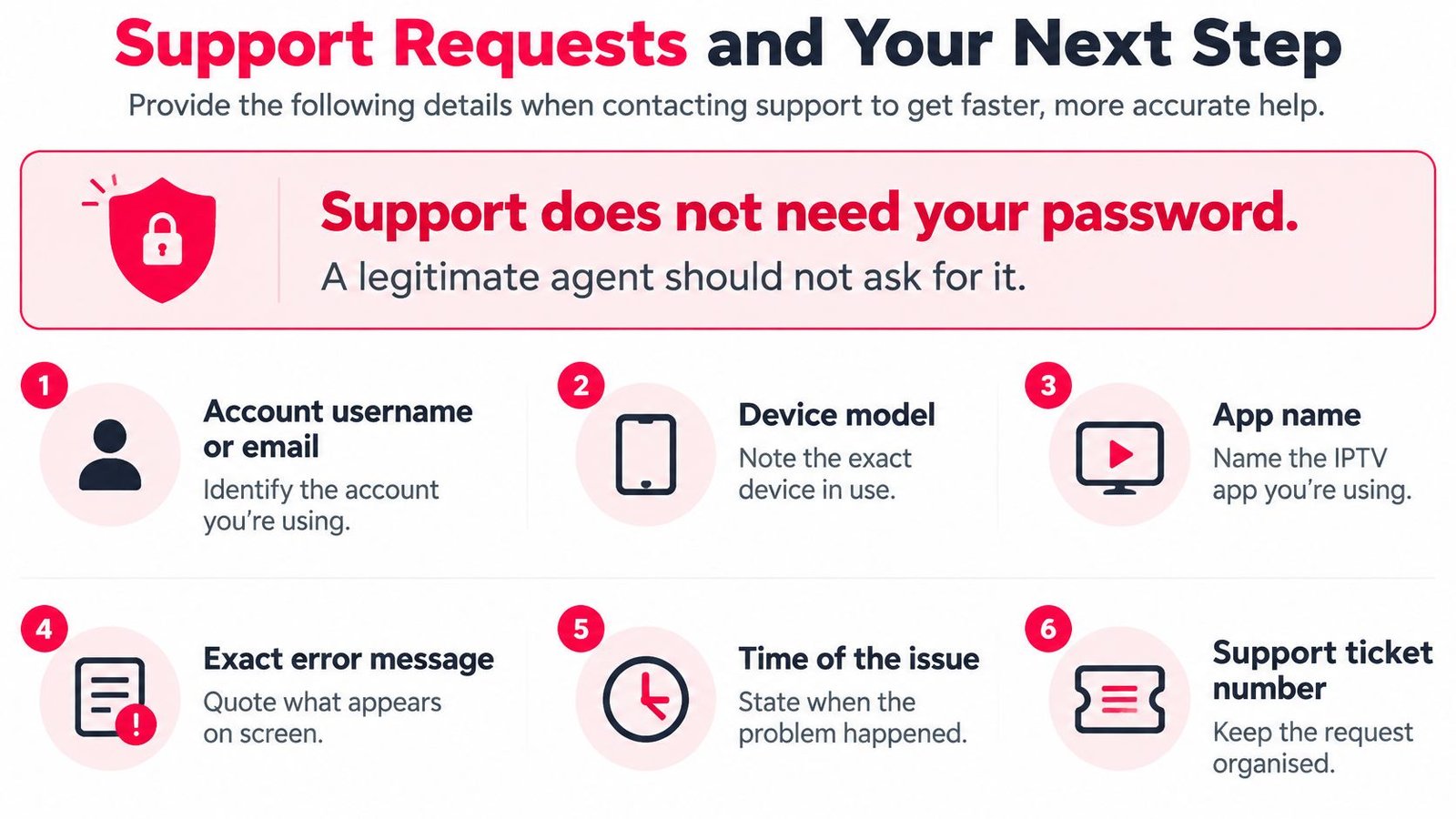
Send a request that support can act on
Be specific: the app reaches the login screen on your Samsung TV, rejects the supplied details, and started doing so this evening. Include whether another device still works and whether the portal shows an active subscription, but leave out the password and the complete playlist URL.
Our support team assists with device setup, channel access, subscription options and common IPTV concerns, and we offer 24/7 customer support. Use our official support contact page to open a request, and note the date and channel you used (email, WhatsApp or live chat) so you can follow up on it later.
A password manager helps you keep credentials unique. It doesn't make sending a password to another person safe.
For a shared household, set a monthly reminder to review signed-in devices and remove equipment no longer in use. Prefer device authorisation where it is available, so setting up a television doesn't require distributing a reusable secret.
If access still can't be recovered, ask support to confirm whether the problem sits with the credential, the subscription status or the authentication server. Any agent asking for your password is asking for the account itself, and that request should end the conversation.
Watching IPTV Canada offers a free 24-hour trial with full access to HD channels, no credit card required, so you can test the login and setup on your own device before committing. Visit Watching IPTV Canada to try the service and get help matching your account details to the right app fields.
No Responses