

The match is about to start, you've got people in the room, and the screen sits on a spinning circle. You reboot the box. You reboot the router. You reopen the app and get the same freeze, a blank channel list, or a picture so soft you can't read the score bug.
When IP TV not working becomes your evening, random restarts waste the time you need for a diagnosis. I'd start by naming the exact symptom, then testing in an order that separates your home setup from your internet provider and your IPTV provider. That sequence tells you what you can fix yourself, what needs a support message with evidence, and when buying new hardware won't change anything.
Table of Contents
- Match Your Symptom to the Right Fix
- Run the Isolation Sequence Step by Step
- Check Whether Your Connection Is the Limit
- Fix Quality, Login and Device Faults
- Tell a Local Fault From a Provider Outage
Match Your Symptom to the Right Fix
A live match freezing at kickoff feels like one problem, but it usually belongs to one of three groups. The app can't connect at all, the stream starts and then keeps buffering, or video plays but stays at low resolution. Each group points to a different layer, so each needs a different first check.
A connection failure points to authentication or app configuration. Repeated buffering after playback starts points to network latency or congestion. Low resolution with otherwise stable playback points to adaptive bitrate limits, where the player drops quality to keep the stream alive.
Speed alone doesn't settle which layer failed. The CRTC internet performance page notes a national target of 50 Mbps download and 10 Mbps upload, while real streaming quality also depends on latency, startup time, rebuffering and delivered resolution. That page also reports Ookla Video Streaming Scores ranging from 82.45 to 84.05 among major providers in Q1 to Q2 2026.
Route the symptom before you change settings
| Symptom | Likely Layer | First Check |
|---|---|---|
| App shows no channels or login fails | Authentication or app setup | Re-enter credentials; confirm Xtream Codes or M3U settings |
| Stream starts, then keeps buffering | Network latency or congestion | Test over Ethernet during 7 to 11 p.m. |
| Video plays only in low resolution | Throughput or adaptive bitrate | Force SD, then HD, then 4K |
| One channel fails, others work | Source-specific outage | Switch to a second channel and compare |
| One device fails, others work | Device client, firmware or storage | Update the app, clear cache, check free storage |
| Every device fails at the same time | Provider or ISP outage | Check mobile data and note the timestamp |
A normal speed test can pass while one streaming server still performs badly, especially during a high-demand sports event. That's why a buffering-only problem needs the checks in our guide to fixing IPTV freezing and buffering, not a login reset.
Write down the symptom, device, channel and time before you change anything. One clear note saves you from undoing a setting that was never the cause.
Run the Isolation Sequence Step by Step
Run these five steps in order. Don't skip to a reinstall or a new router until you know which step changes the result.
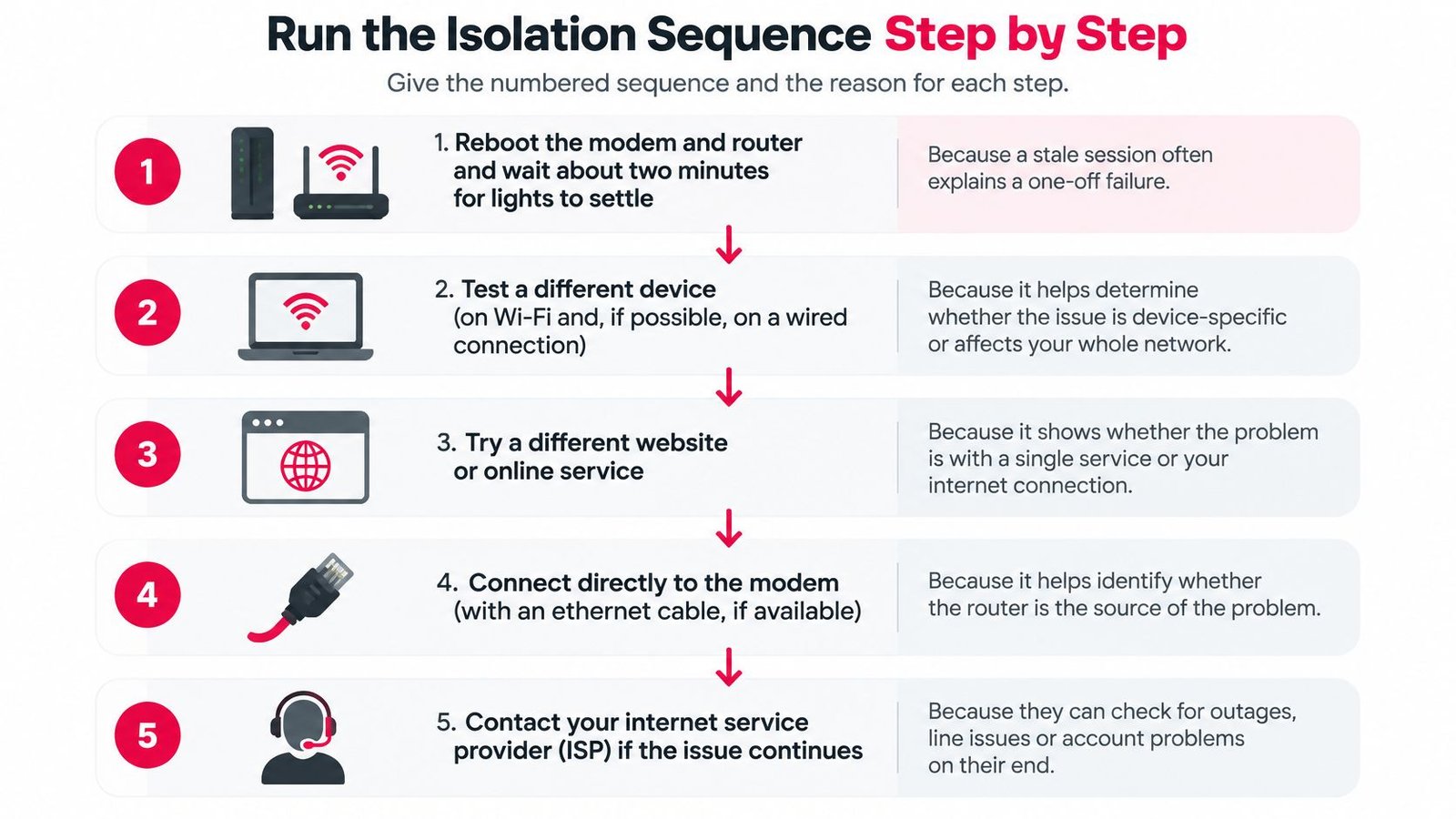
- Reboot the modem and router. Unplug both, wait, reconnect them, and give the lights about two minutes to settle. A stale session often explains a one-off failure, and this clears it without touching your settings.
- Connect by Ethernet. Run a cable from the router to the TV, box or laptop you're testing. If the stream stabilises on cable but fails on Wi-Fi, you're looking at wireless interference, distance from the router, or router load, not your subscription.
- Stop competing traffic. Pause cloud backups, game downloads and other household streams. A second or third stream uses the same capacity, and you can't judge your connection while it's shared.
- Play an HD test stream for ten minutes. Use the same channel or on-demand title each time and note whether it stays smooth. Ten minutes is long enough for short buffering cycles to show up.
- Repeat between 7 and 11 p.m. local time. Play the same stream, on the same device, by Ethernet and then by Wi-Fi. Record download speed, round-trip latency, packet loss and jitter for each run.
Read the peak-hour result
The CRTC decision defining high-quality fixed broadband uses a peak-time round-trip latency threshold of 50 ms and a packet-loss threshold of 0.25% for real-time applications. If your Ethernet results are worse than either threshold at peak time, ISP-side congestion or access-network impairment is a credible cause of freezing, pixelation or stream drops.
That distinction matters because advertised Mbps doesn't prove stream quality. Latency spikes, packet loss and jitter can break live video even when your headline speed looks fine. A stream that works at noon and fails every evening is telling you about congestion, not about your app.
If Ethernet fixes it, spend your time on Wi-Fi placement, channel interference and router load. If both paths fail only at peak time, keep the timestamped results for your ISP. If both fail all day on one device only, move to the device checks instead of calling the ISP.
Practical rule: Change one variable at a time. If you reboot, move the router and reinstall the app in the same five minutes, you'll never know which one worked.
Check Whether Your Connection Is the Limit
Rural users can face a wider performance gap than national averages suggest. CIRA's 2024 Internet Performance Test summary reports that urban users had roughly twice the download speed and more than three times the upload speed of rural users. If your home uses fixed wireless or another rural connection, results from a city connection may not reflect the capacity available at your address.
The CRTC departmental results report says 93.8% of Canadian households had access to fixed broadband Internet in 2023 to 2024. Even where internet is available, browsing may feel normal while a live stream buffers or drops to lower resolution. Streaming depends on sustained throughput, not just a connection that loads web pages.
Four checks that settle it
- Use your recorded Ethernet results: Refer to the peak-time latency and packet-loss thresholds from the isolation test. Repeatedly exceeding them points away from a device or app fault.
- Check the timing pattern: If playback is clean in the morning but slows in the evening, congestion on the access network is a likely factor. For more on distinguishing congestion from deliberate limiting, read about IPTV ISP throttling and possible solutions.
- Reduce stream demand during busy hours: Choose SD or HD instead of forcing 4K, and schedule large downloads, backups and game updates for off-peak hours. This can keep a stream stable when household demand is competing for limited capacity.
- Compare with your off-peak Ethernet result: If the connection remains unstable outside busy hours, congestion alone is less likely to explain the problem.
That pattern can help you avoid spending on the wrong fix. A new box, another player or an app reinstall cannot increase the capacity of your internet line. If the connection is the limit, consider a different plan, another access technology where available, or discussing the timestamped results with your ISP.
Fix Quality, Login and Device Faults
Match the stream to the connection you've measured, not the speed printed on your plan. The table below gives you a working target for each quality level and the first check to run.
| Stream Quality | Download Speed Needed | Check First |
|---|---|---|
| SD | about 3 Mbps | Confirm basic connectivity on Ethernet |
| HD or FHD | about 6 Mbps | Stop household streams and retest |
| 4K UHD | about 25 Mbps | Disable VPN and close background traffic |
| Latency reference | under 100 ms | Test at 7 to 11 p.m. on Ethernet |
| Peak-time latency target | 50 ms round trip or less | Compare results with the ISP report |
Those HD and 4K figures come from CRC technical guidance cited in the CRTC mobile and broadband report, which lists approximately 6 Mbps download for HD/FHD streaming and 25 Mbps for 4K UHD, with latency below 100 ms as a reference condition. The same source puts the universal-service benchmark at least 50 Mbps download and 10 Mbps upload, but that's an availability floor, so a plan that looks adequate can still fall short for 4K when several people stream at once.
Work through quality in this order
- Force SD, then HD, then 4K. Find the highest level that stays stable for ten minutes. If SD holds and HD or 4K fails, insufficient sustained throughput or adaptive-bitrate instability is more likely than an account problem.
- Disable any VPN temporarily. A VPN adds a routing hop that can cost you speed and stability. Turn it off for one test so you can rule it in or out.
- Clear the app cache. Corrupted temporary data causes long load times and channels that won't open. Clearing it doesn't remove your subscription.
- Update the app and the device firmware. An outdated player can stop loading channels after a TV system update, which is a common pattern behind cases like IPTV Smarters not working.
- Check heat and storage. Confirm the device isn't overheating and has free storage, at least 1 GB if you can manage it. A full, hot box throttles itself and drops streams.
Skip repeated DNS changes as a first-line fix. DNS can affect the initial connection or regional routing, but it rarely corrects persistent packet loss once playback has started.
Then check login and the device itself
For a blank channel list or a failed login, confirm the username, password and server address character by character. One wrong character, a trailing space from a paste, or the wrong format produces an empty list with no useful error. Match the format to what your provider issued, Xtream Codes or M3U, and don't mix fields between the two.
Confirm the subscription is active and that you haven't exceeded your device limit. If you're testing a new service, a short term such as 1 Month Premium IPTV lets you verify your login format and device count before you commit to a longer term.
If one device fails at every quality level while others on the same account and network work, the fault is that device. Suspect the client, decoder, session state or network stack. Uninstall the app, reinstall it, and log in again with your details ready. Budget about fifteen minutes, and test live sports separately afterwards, since event-time load exposes problems that on-demand playback doesn't.
Tell a Local Fault From a Provider Outage
A stream that fails on every device may point to a wider service or connection problem. Compare the affected devices, channels, connection type and timing before changing hardware or settings.
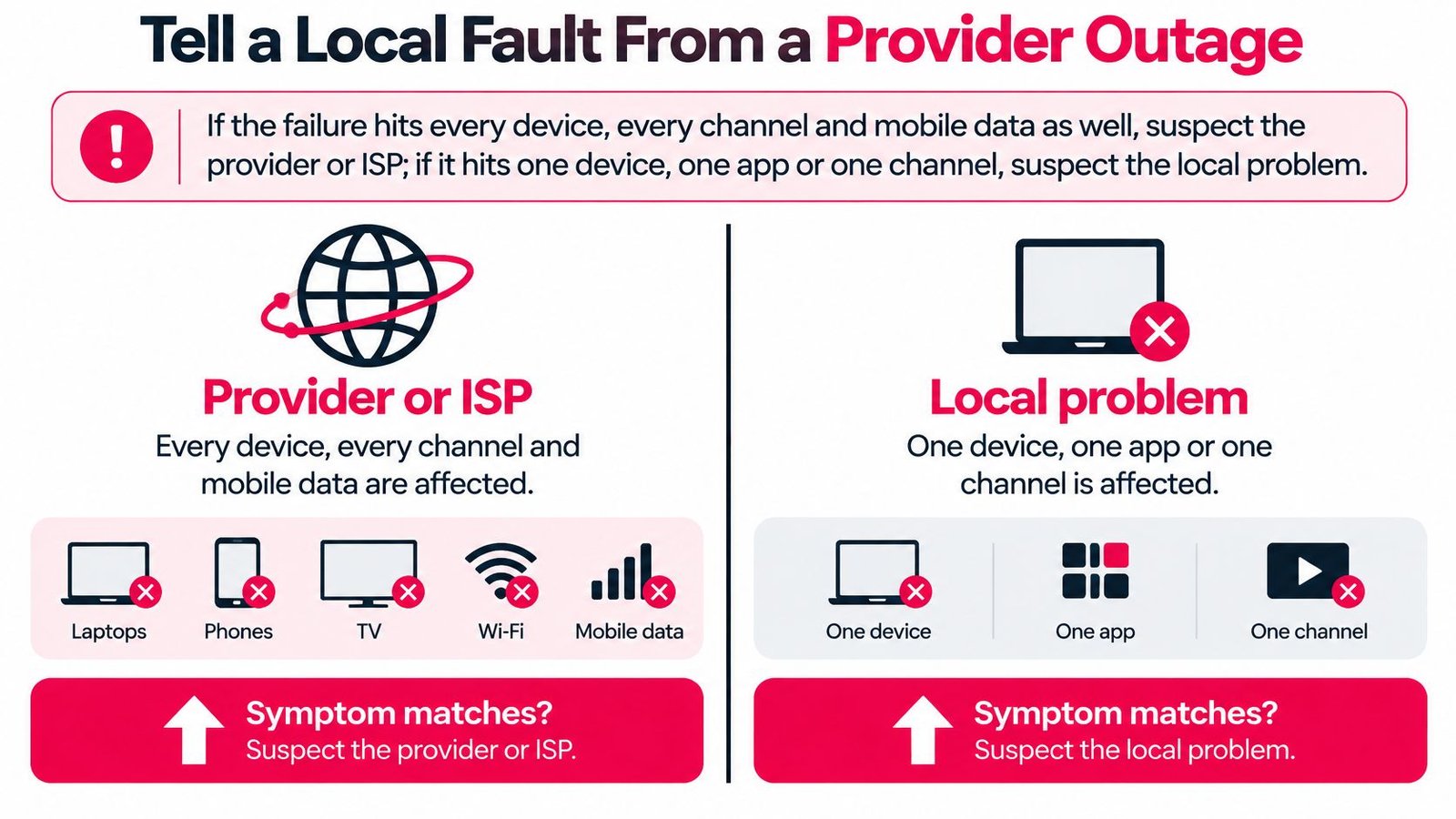
| Check | Local Fault | Provider or ISP Outage |
|---|---|---|
| Devices affected | One device or app | Several devices at the same time |
| Channels affected | One channel or none | Many channels or the whole service |
| Mobile data test | Stream works | Stream also fails |
| Timing | Repeats on one device or app | Begins suddenly across devices, sometimes during a live event |
| Expected fix | Adjust a setting, update or reinstall the app | Check provider updates and ask what remedy applies |
A working mobile connection shows that one route is up, not that the provider is healthy. If the stream works on mobile data but fails on home internet, the difference points to the home connection or its route to the service. If it fails on both, the service, account access or a wider issue may be involved.
Check the provider's outage updates and the remedy that applies before cancelling or paying for another service. The CRTC consumer protection page describes a consultation running from September 4 to November 13, 2025 on requiring timely outage updates and possible refunds or bill credits after disruptions. Ask the provider whether a trial, refund or credit applies, and when to expect the next update.
For support, share the timestamped results from your earlier checks and add one new detail: whether the provider has posted an outage notice or explained a remedy. WATCHING IPTV offers 24/7 customer support for device setup, channel access, subscription options and common IPTV troubleshooting. Its support team is based in Canada and can be reached through live chat or email.
If your results point to the service rather than your home setup, visit Watching IPTV Canada to review subscription options and installation guidance. Include your device model, login format and the step where the results changed so support can help narrow down whether the fault is with your device, connection or service.
No Responses