
You've paid for an IPTV subscription, installed an app on your Fire TV Stick, and settled onto the couch. Instead of the programme you expected, you're looking at a blank screen, a spinning circle, or a channel guide that never finishes loading.
The missing piece may not be another subscription or a faster internet plan. It may be an IPTV streaming player that fits your service, device, and connection. Understanding what that player does makes it much easier to choose one, configure it properly, and work out where a playback problem starts.
Table of Contents
- What an IPTV Streaming Player Actually Does
- How a Player Differs From an IPTV Subscription
- Compatibility Features That Decide Whether a Player Fits
- Bandwidth Each Picture Quality Needs
- Why Buffering Happens Even on a Fast Connection
- Which Player Setup Fits Your Household
- Test a Player on Your Own Connection Before You Commit
What an IPTV Streaming Player Actually Does
Say your subscription confirmation arrives with a playlist address and login instructions. You open the app on your television, but it asks for information you don't recognise. That app is the player, the software between the provider's stream and your screen.
A DVD player offers a useful comparison. The machine plays the disc, but it doesn't make the movie. Similarly, an IPTV player receives television streams rather than supplying the programmes itself.
From login to picture
When you select a channel, several things happen:
- Authentication: The player uses your playlist address or portal credentials to access the service.
- Channel request: It asks the provider for the stream you selected.
- Video delivery: With common internet-streaming formats, it downloads small segments of video and audio.
- Decoding: Your device turns that compressed information into pictures and sound.
- Buffering: The player holds some incoming video in reserve so brief interruptions don't immediately stop playback.
The electronic programme guide, usually shortened to EPG, is another part of the interface. The player displays scheduling information supplied through the service, helping you find programmes without opening every channel.
For a more detailed explanation of the delivery chain, our guide to how IPTV works separates the account, connection, and playback components.
Why the player matters on a television
According to LG Ad Solutions' Canada edition of The Big Shift 2025, nine in ten Canadian internet users had an internet-connected TV in 2025, and 55% of Canadian connected-TV viewers preferred streaming television. Choosing playback software therefore matters well beyond watching an occasional video on a laptop.
On a television, you also need controls that work comfortably with a remote. A player that technically opens a stream but makes channel selection awkward isn't necessarily a good fit.
Keep the roles separate: The provider determines what content is available. The player manages how that content is presented and played, within the limits of the stream, device, and connection.
A player can improve playback handling. It can't create a missing channel, restore an expired account, or repair video that the provider isn't delivering.
How a Player Differs From an IPTV Subscription
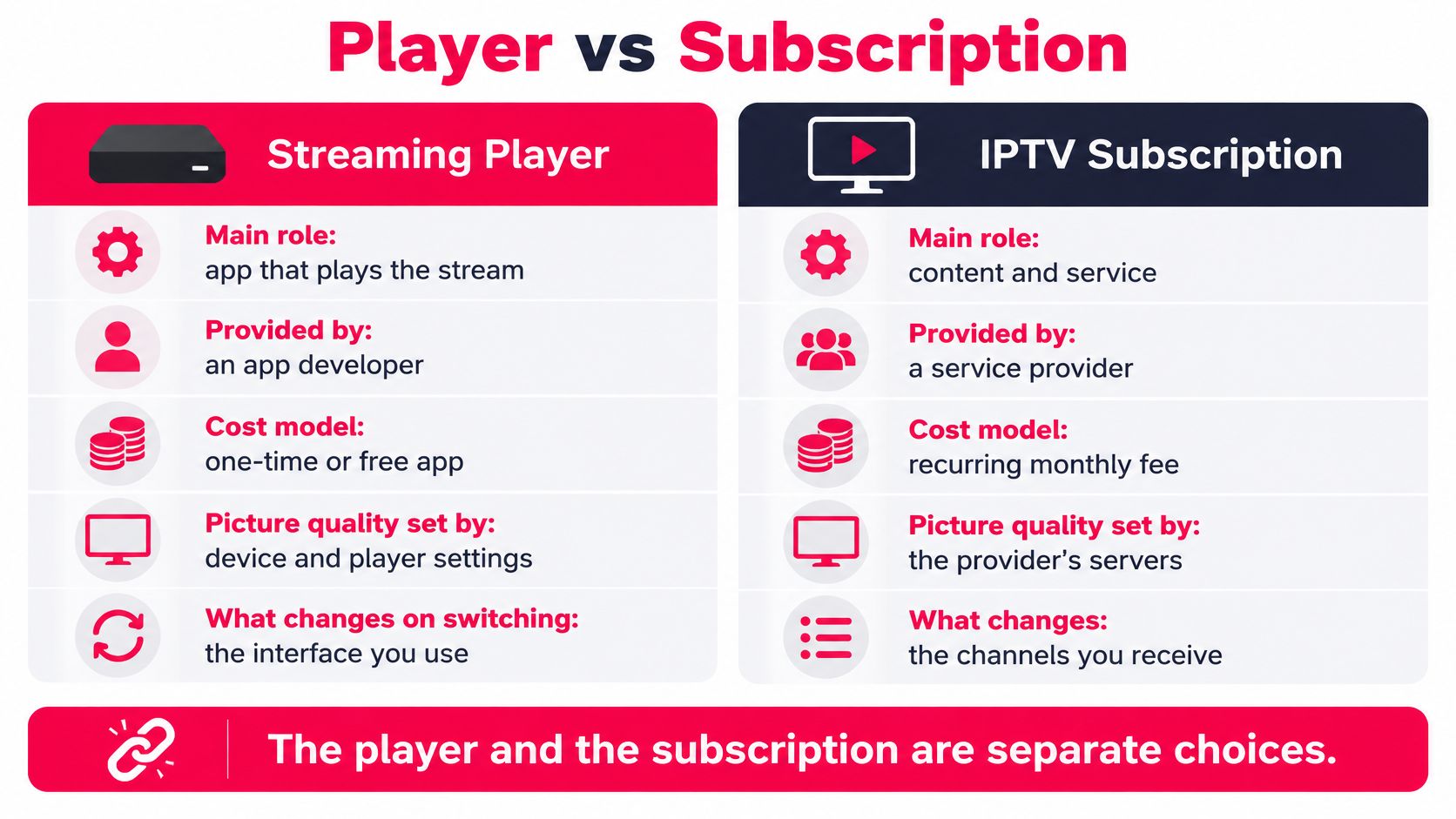
| Aspect | IPTV streaming player | IPTV subscription |
|---|---|---|
| Main role | Decodes and displays streams on a device | Supplies channels, guide data and on-demand content |
| Typically provided by | App developer or device maker | Service provider |
| Cost model | Usually free or a one-time app purchase | Recurring fee for a fixed term |
| Controls picture quality | Adaptive bitrate logic and buffer size | Stream encoding and server capacity |
| If you switch | Can be replaced without changing the service | Must be renewed or changed with the provider |
These are separate purchases, even when they appear together on the television. Some players also charge recurring app fees, so read the app's payment terms rather than assuming its activation includes television service.
What you're paying for
The subscription gives your account access to a content catalogue. It also determines which guide entries, archived programmes, and on-demand titles the player can retrieve.
The app purchase pays for software features or removes restrictions in that software. Buying a player doesn't activate a television subscription. Without a working stream source, an otherwise excellent player has nothing to play.
The reverse matters too. A suitable subscription can feel frustrating if the chosen app struggles with its playlist format, your remote, or the device's video decoder.
Who controls the picture
The provider establishes the available video quality through its encoding and delivery infrastructure. The player can only select among the streams it receives, and automatic quality changes require the service to supply compatible alternatives.
Consider a hypothetical comparison using the same account on the same television. One player opens the guide promptly and maintains playback during a match; another hesitates when browsing and freezes when switching channels. That difference is a reason to investigate the player's settings and device compatibility, not immediately replace the subscription.
A provider-branded app can make the distinction less obvious. Its logo may combine the service and interface into one experience, but the underlying responsibilities remain separate.
Before moving to another app, confirm that your login method is supported and that the service permits third-party players. Protected or tightly integrated services may require their own application.
Judge the subscription on content availability, uptime, and support. Judge the player on playback behaviour, usability, and compatibility with your household's equipment.
Changing apps may improve the interface without changing your channels. Changing providers may change the catalogue without fixing an overloaded streaming device.
Compatibility Features That Decide Whether a Player Fits
Start with your existing equipment rather than an app's advertising. A useful player must accept your account details, decode the available streams, and remain easy to operate from your normal viewing position.
Check the playback essentials
Device support. Does it support your exact model and operating system?
Fire TV, Android TV, Apple TV, Roku, and built-in smart-TV systems aren't interchangeable. Confirm the supported version and installation method, not just the manufacturer's name. Our IPTV setup guide for smart TVs helps you identify the relevant setup path.Input format. Can it accept the credentials you've received?
An M3U playlist is a list of stream locations, while a portal or structured account login lets the application retrieve service information through a supported interface. A field asking for a playlist URL won't necessarily accept a portal address. Match the app's input method before troubleshooting playback.Codec and resolution. Can the device decode the actual video?
Look for support for formats such as H.264 and HEVC, then check hardware decoding for high-resolution content. An app may list a resolution that the underlying television box can't play comfortably. Audio compatibility matters too, particularly if you use a receiver or soundbar.Electronic programme guide. Is it readable and correctly aligned?
Browse categories, search for a programme, and check whether the displayed schedule matches what's playing. Confirm the time zone before blaming inaccurate listings. If you need time-shift features, verify that the interface exposes them clearly.
Check everyday usability
Catch-up and on-demand navigation. Can you find and resume programmes?
Open an archived broadcast and browse a series with multiple episodes. A catch-up button doesn't mean the provider archives every channel, and a player can't reconstruct a programme that wasn't retained.Simultaneous viewing. Can your setup accommodate the household's usage?
Distinguish installing the app on several devices from playing on them concurrently. Account limits, player licensing, and available network capacity are separate constraints. Test the combination you'll use rather than checking each screen in isolation.Accessibility. Can everyone find and operate the necessary controls?
Open the stream's track menu and test captions, French audio, and descriptive audio where available. Adjust caption size and styling on a live channel, then check guide readability, remote navigation, and whether accessibility features are identified in programme listings.
A CRTC-commissioned analysis of streaming accessibility found that closed captioning and audio description can be inconsistently applied, difficult to locate, or variable in quality, with accessibility metadata often missing or not searchable.
Those features rely on a combination of the player, stream information, and television or streaming device. Test them during a trial, including after changing channels, rather than assuming a menu option guarantees usable access.
Bandwidth Each Picture Quality Needs
The following are approximate planning targets from CIRA's Canadian internet-speed guidance, not guarantees that every stream will work at the listed connection speed.
| Picture quality | Download | Upload | Practical note |
|---|---|---|---|
| SD | Approximately 5 Mbps | About 2 Mbps | A starting target for a stream on a secondary screen |
| HD | Approximately 10 Mbps | About 2 Mbps | Reserve extra capacity for each added stream |
| 4K | Approximately 30 Mbps | About 2 Mbps | Confirm the device decodes 4K before selecting it |
Sustained capacity matters more than a momentary peak. Treat these figures as operating targets to exceed with headroom, not exact requirements imposed by every IPTV channel. Actual video bitrates differ by encoding and content.
Leave room for the rest of the household
Suppose people are watching HD programmes on separate screens while someone else uploads holiday photos. All of those activities share the connection, and upload congestion can also delay the small outgoing requests needed to keep downloads moving.
Adding the video targets doesn't account for background updates, protocol overhead, or changing network conditions. You need spare capacity so ordinary household activity doesn't immediately force the player into recovery.
A well-configured player estimates what the connection can sustain rather than trusting a brief speed-test result. Where compatible adaptive streams are available, it should select a lower rendition before its reserve runs out.
A sharper picture isn't useful if it repeatedly stops. High-resolution playback also requires suitable decoding hardware, so spare bandwidth alone won't resolve device-side stuttering.
Practical rule: Choose the highest quality your household can sustain comfortably, not the highest quality the app lets you select.
Measure under normal viewing conditions
- Test during your usual evening window. Use a sustained download test or repeated measurements over several minutes, with normal household activity continuing.
- Compare Wi-Fi with Ethernet. Where your device supports a wired connection, test both paths from the same location and avoid changing other variables.
- Assess the lower sustained result. Look for repeated drops and shrinking headroom rather than selecting the best reading.
- Verify with actual playback. A speed test measures the path to its test server, which may differ from the route used by your television service.
Use those results to choose an initial quality setting. Then check whether the picture remains stable while the household uses the connection normally.
Why Buffering Happens Even on a Fast Connection
An excellent speed-test result doesn't rule out a network problem. Download speed measures how much data can arrive over time; it doesn't fully describe delays, inconsistent arrival times, or missing packets.
The CRTC's fixed-broadband quality framework uses peak-time thresholds of 50 ms for round-trip latency and 0.25% for packet loss. These are broadband-quality benchmarks, not universal boundaries at which every IPTV player starts freezing.
Latency is the time a request takes to travel out and back. Jitter is variation in packet arrival timing. Packet loss means some transmitted information doesn't arrive successfully, potentially requiring retransmission and reducing useful throughput.
What a capable player can do
A useful diagnostic screen may show buffer occupancy, incoming bitrate, dropped frames, or network errors. Some players expose detailed measurements; others mainly infer trouble from download timing and the rate at which the buffer empties.
Look for these behaviours rather than assuming every app measures the connection directly:
- Early quality adjustment: It switches to an available lower-bitrate rendition before playback stalls.
- Adjustable live buffering: It allows more reserve on an unstable connection, accepting a longer delay behind the live broadcast.
- Controlled recovery: It reconnects cleanly after an interruption rather than remaining on a frozen frame.
- Supported source switching: It can move to a backup when the service supplies an alternative and the player supports that mechanism.
No buffer setting can compensate indefinitely for a stream that arrives more slowly than it plays.
Isolate the fault before changing everything
Start with a wired connection where possible. If Ethernet works but Wi-Fi doesn't, investigate wireless interference, router placement, or congestion before replacing your subscription.
Next, change channels within the same service. A problem confined to one channel suggests a different investigation from a failure affecting the entire catalogue, though this test alone doesn't prove the cause.
Finally, pause large downloads, cloud backups, and uploads on other devices. If playback recovers, shared connection load is a useful lead.
For router-side checks, Celmin's setup tips for Canadian households offer a practical starting point. Change settings individually so you can identify which adjustment helps.
A successful wired test narrows the problem. It doesn't prove that the provider, internet route, and player will remain faultless under every condition.
If both connection methods fail, compare another supported player or device before concluding that the service is down. Our guide to fixing IPTV freezing and buffering provides a broader troubleshooting path.
Which Player Setup Fits Your Household
The right choice depends on what the household does with its connection. These hypothetical profiles show how the priorities change without turning the decision into an app popularity contest.
The Toronto condo household
A household on fibre uses several screens, mostly for HD programmes. Here, everyday navigation may matter more than advanced troubleshooting controls.
- Check: Guide search, separate favourites, parental controls, and whether simultaneous playback matches the account's allowance.
- Avoid: Assuming every Fire TV Stick in the home has identical decoding capabilities.
- Expect: Responsive browsing and comfortable everyday viewing, provided the local network and stream source perform properly.
For a newer streaming device, test high-resolution playback directly. For an older stick, inspect its specifications and watch for dropped frames rather than assuming the fibre connection removes all limitations.
The Saskatchewan hockey household
A rural household uses fixed wireless and often watches live hockey while another screen is active. Prioritise a player with visible buffer information and sensible recovery behaviour.
- Check: Ethernet connectivity, adjustable buffering, and automatic step-down where the stream supports it.
- Avoid: Forcing the highest picture setting throughout a busy evening.
- Expect: Occasional reductions in sharpness may be preferable to interruptions, but the result depends on the available connection and source.
Test during an actual game. Quiet daytime viewing won't reveal how the setup behaves when both household usage and event demand increase.
The older Android-box household
An older Android box may struggle with a crowded interface or demanding decoding tasks. A lightweight player with a straightforward guide is a better starting point than an app loaded with animations and background features.
- Check: Hardware-decoder selection, menu responsiveness, and whether closing background apps changes playback.
- Avoid: Running demanding streams alongside downloads or leaving unused applications active.
- Expect: A restrained quality setting may provide a more dependable result than pursuing maximum resolution.
Don't assume HD is automatically effortless on every old box. Test the particular codec and stream the household intends to watch.
The mobile-hotspot viewer
Choose a player that can lower quality automatically and pause optional downloads, where those features are available. Check mobile data allowances and hotspot restrictions before extended viewing.
Avoid using the hotspot's best moment as the baseline. A realistic target is watchable playback that adapts to changing reception, not a permanently fixed maximum-quality picture.
The same subscription may suit these households, but only if its supported streams and access methods fit each setup. Match the player to the actual bottleneck.
Test a Player on Your Own Connection Before You Commit
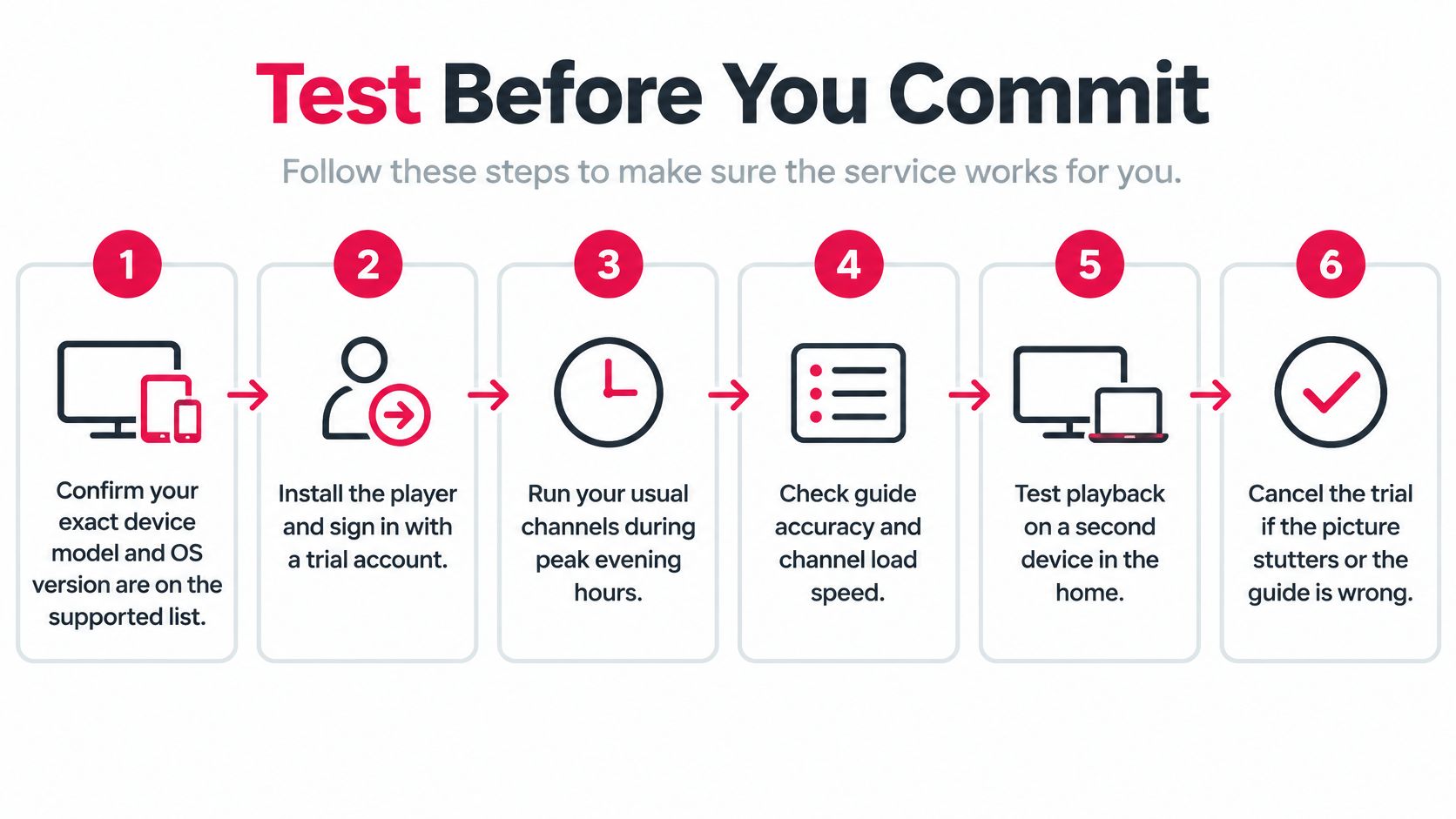
A player that works well on one device or network may struggle on another. Test it under the conditions you watch in, and note the channel, device, connection method, and any playback problems so you can compare results.
A practical trial procedure
Confirm your device and operating system. Check the player's supported-device list. Support for a device family does not guarantee compatibility with every model.
Activate a usable trial. WATCHING IPTV offers a free 24-hour trial with full access to HD channels and no credit card required. It supports Smart TVs, Firestick, MAG Box, Formuler, Chromecast, Apple TV, and Roku. The player you choose must still work with your specific device.
Check the connection under household load. Compare Wi-Fi and a wired connection where possible. Keep other household internet use consistent, so a change in playback is easier to interpret.
Watch during your usual busy evening. If live sports matter to you, include a game. Note buffering, how quickly playback resumes, and whether picture quality changes.
Check the guide and available controls. Browse different channel categories and confirm programme times. Try captions or alternative audio tracks if the player offers them.
Compare another compatible player. Where possible, use the same account, channel, and device. Stay within your plan's simultaneous-connection allowance so an account limit does not confuse the result.
Review the subscription term and get help with setup questions. Choose a term and number of connections that fit your household. WATCHING IPTV's support team can help with device setup, channel access, subscription options, and common IPTV troubleshooting concerns.
Use this seven-step checklist as you test.
Choose the player that keeps playback dependable during your normal peak viewing hours. A useful setup also needs controls your household can operate and a guide that makes it easy to find programmes.
Watching IPTV Canada offers live television, on-demand programming, and adaptive picture quality for compatible devices. Visit Watching IPTV Canada to try the service on your connection and get help matching your device with a suitable player before choosing a subscription.
No Responses